
Recently, I had a task where I needed to convert a series of old, low-resolution PNG images into a format that I could losslessly scale for use in a modern web application. Of course, SVG is the obvious choice for the format.
Tracing
When you search for PNG to SVG converters, you will find a lot of tools and online services that promise to do this. They all work by the same principle: they use edge detection to find outlines in the image and create vector representations of those outlines - a process called “tracing”.
There are different algorithms for tracing, and depending on your source material, some are better suited than others. And for simple, mostly flat images like a logo, they work well enough.
But my images weren’t super simple. Even though they were limited in color palette and used relatively simple shapes, they were somewhat busy.
The following is an example of the kind of image I was working with (though mine were a bit more complex).

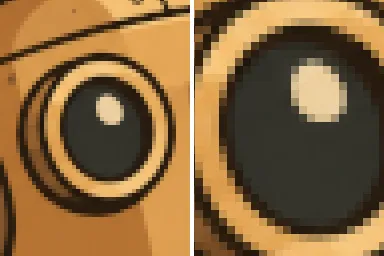
It’s a 384×256 pixel PNG image at about 131KB in size. The zoomed-in images show the pixelation you get when you just scale up a pixel image.
Note: This image was AI generated for demonstration purposes. It has the typical weird AI artifacts of lines not quite connecting, objects not being exactly right and some areas being a bit messy. But it’s a good enough example to demonstrate the problem.
Asking Claude to convert this image to SVG resulted in the typical approach. It found vtracer installed on my system,
ran it, and after just a couple of minutes it declared success. Besides some mess-ups in the background, the result looks fine
at first glance. But when you zoom in, you see that the result does not have the clear lines you’d expect from a vector image. Instead, you see
a lot of small elements, almost like a watercolor painting.

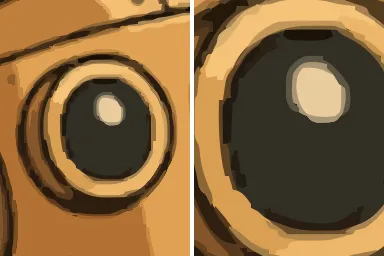
But not only is the look an issue. The file itself is not what you might expect.
As you may know, SVG is an XML-based format, describing shapes as primitives like circles, rectangles, lines and paths. The latter basically consist of corner and control points in the image’s coordinate space. A triangle, for example, is described by just three points.
This file consisted of 2116 paths and a whopping 60,000 points! The size was 2.1MB. That’s 16 times the size of the original PNG image. And it was still not a good representation of the original image.
Because the SVG is so large, I did not embed it above but used a PNG screenshot instead.
Understanding and redrawing
The issue with tracing is that it just sees pixels and tries to find edges. I am sure you could tune a tracer to do a better job at the above image: make it ignore smaller details, merge similar colors, etc. But I thought there must be a better way to do this.
If I were to do this manually, I would load the pixel image into Inkscape and then painstakingly redraw the actual objects in the image using paths. An image like the above would probably take me a couple of hours to do.
But since Simon Willison’s pelican tests, we know that modern LLMs are capable of creating SVG images from scratch. And they are also capable of understanding the content of an image. Here’s what Claude had to say about our example image:
The image robot.png is a cartoon illustration with a retro, steampunk style. It has 384 × 256 pixels.
Main subject
- A robot is at the center. It looks at the viewer.
- The robot has a round head and a short antenna. The antenna has a ball at its top.
- The robot has two large, round eyes. The eyes look like camera lenses or goggles.
- The robot holds its right hand to its chin. This pose shows that the robot thinks about something.
Background
- At the left, there is a tall copper tank with a round window. You can see liquid with bubbles behind the window.
- At the right, there is a glass flask with a brown liquid in it. Pipes connect the flask to the machine around it.
[…]
So we have an LLM that can “see” images and that can create SVGs. Why can’t it do both at the same time?
Result
Turns out, it can.
The trick is to make Claude work like a human illustrator would. First, it analyses the image and catalogues the color palette, the layers and every object. It keeps track of what each object is, what it connects to and from which angle it is seen. Then it redraws each object from simple primitives like circles, ellipses and paths. The pixels are only used to measure coordinates. Finally, it renders its own SVG, compares it with the original at high zoom and fixes every fault before it reports back. Along the way, Claude also wrote a couple of small helper tools for measuring things like circle centers or fitting curves to edges.
Of course, this is not free. Where vtracer was done in a couple of minutes, the redraw can take half an hour or more. However, the results are in a completely different league. When you zoom in, you see that the image is no longer a hot mess but consists of real lines and shapes.
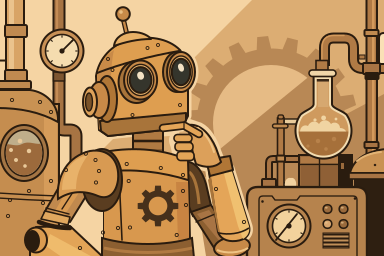
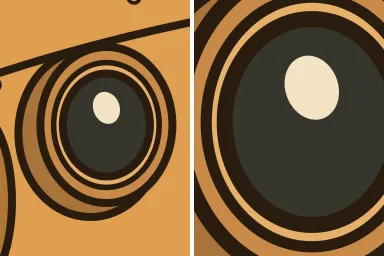
No only are the lines clean, they also correspond to actual objects in the image. This means it is now easy to open the file in Inkscape and change colors, move objects around or adjust paths the traditional way.
Also, the file size is much smaller than the traced SVG. The redrawn SVG is just 20KB, which is 6.5 times smaller than the original PNG image and 100 times smaller than the traced SVG!
The whole approach (and used tools) is now available as a skill for Claude Code.
Tracing is still a fine tool for logos and simple icons. But for anything with actual objects in it, letting the AI understand the image and draw it again gives you a much smaller, cleaner and more useful SVG. Of course doing this manually is still the best way to get a perfect result.